Step 1 of 3
Download the installer
Click the yellow button below to download BrakeSetup.exe. It’s free.
Download BrakeSetup.exe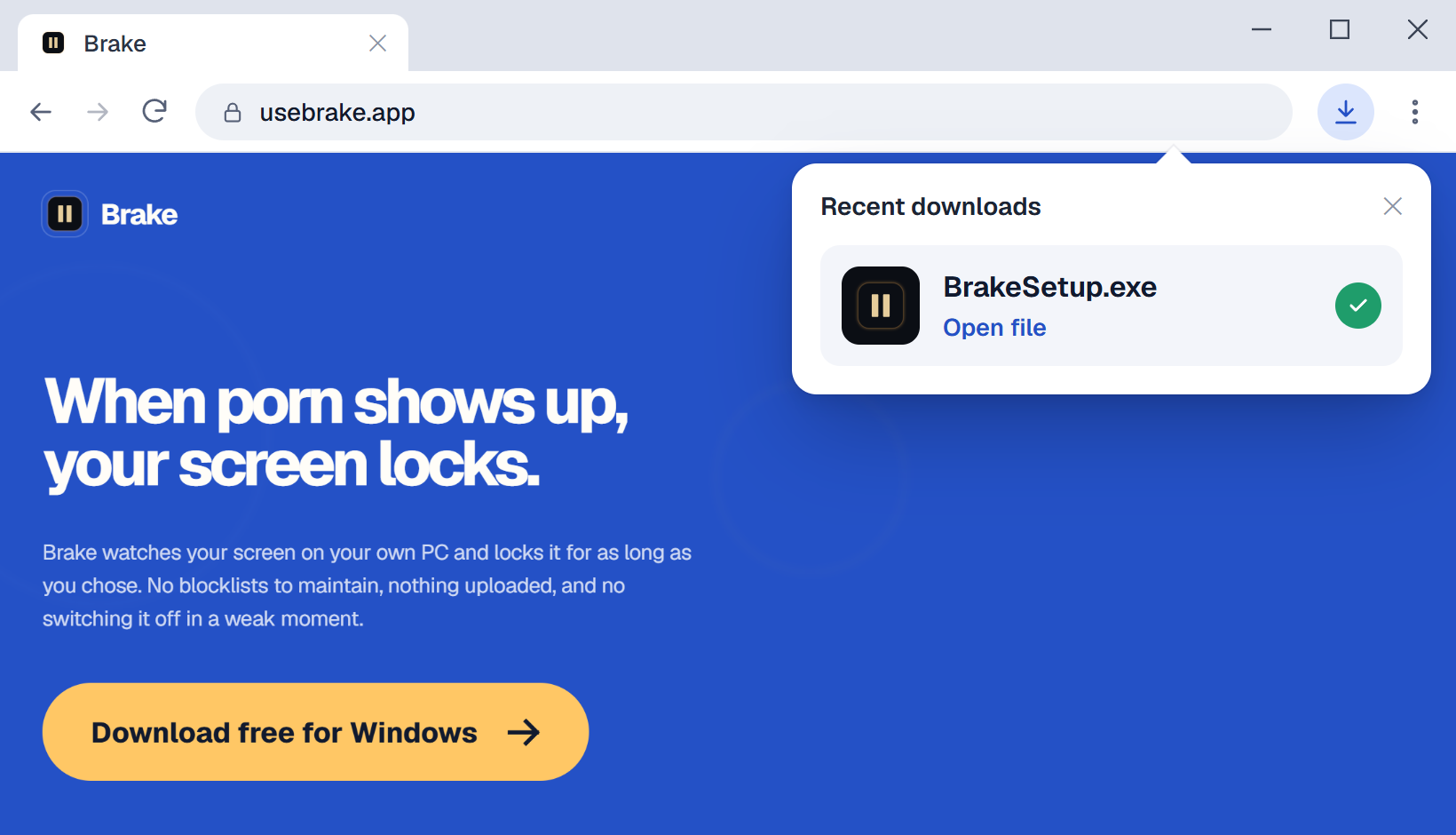
 Brake
Brake
Click the yellow button below to download BrakeSetup.exe. It’s free.
Download BrakeSetup.exe
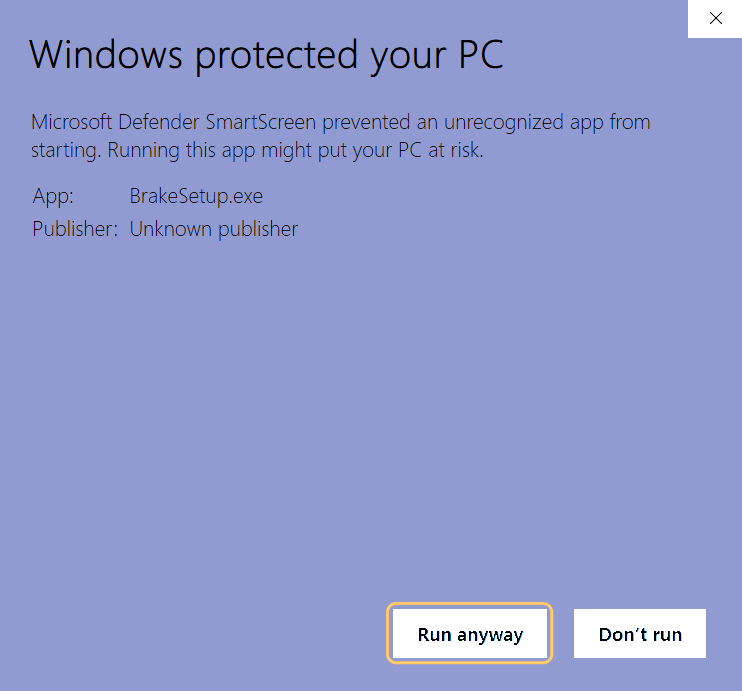
Double-click the installer. Windows may show a blue “Windows protected your PC” screen first. This is Microsoft SmartScreen, and it appears because Brake is new and its installer isn’t code-signed yet. SmartScreen warns about installers it hasn’t seen many times before, which is common for new apps.
Brake then installs its app files, shortcuts, and background services.
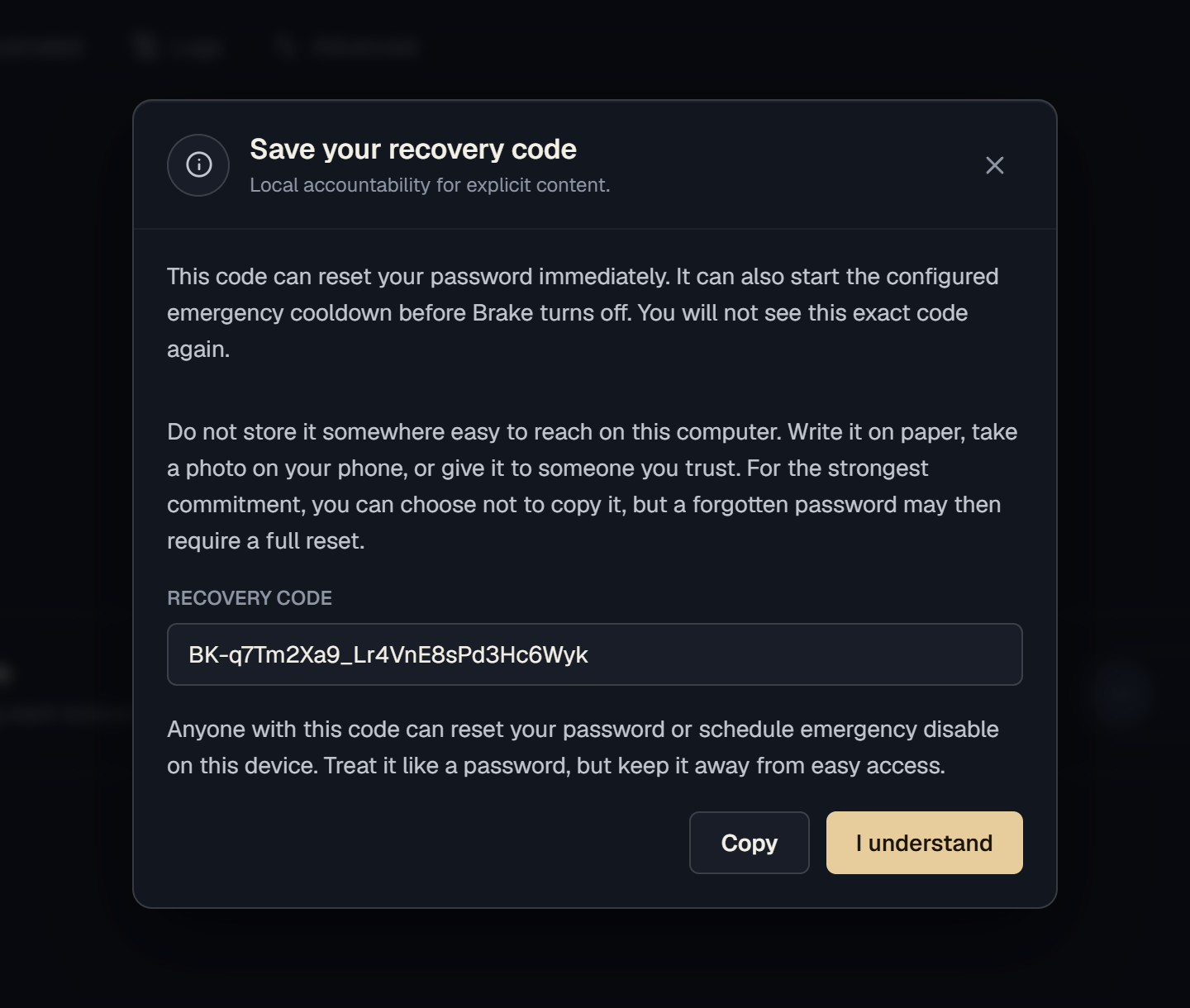
Launch Brake from the installer, desktop shortcut, or Start menu. On first launch, save your recovery code before turning protection on.
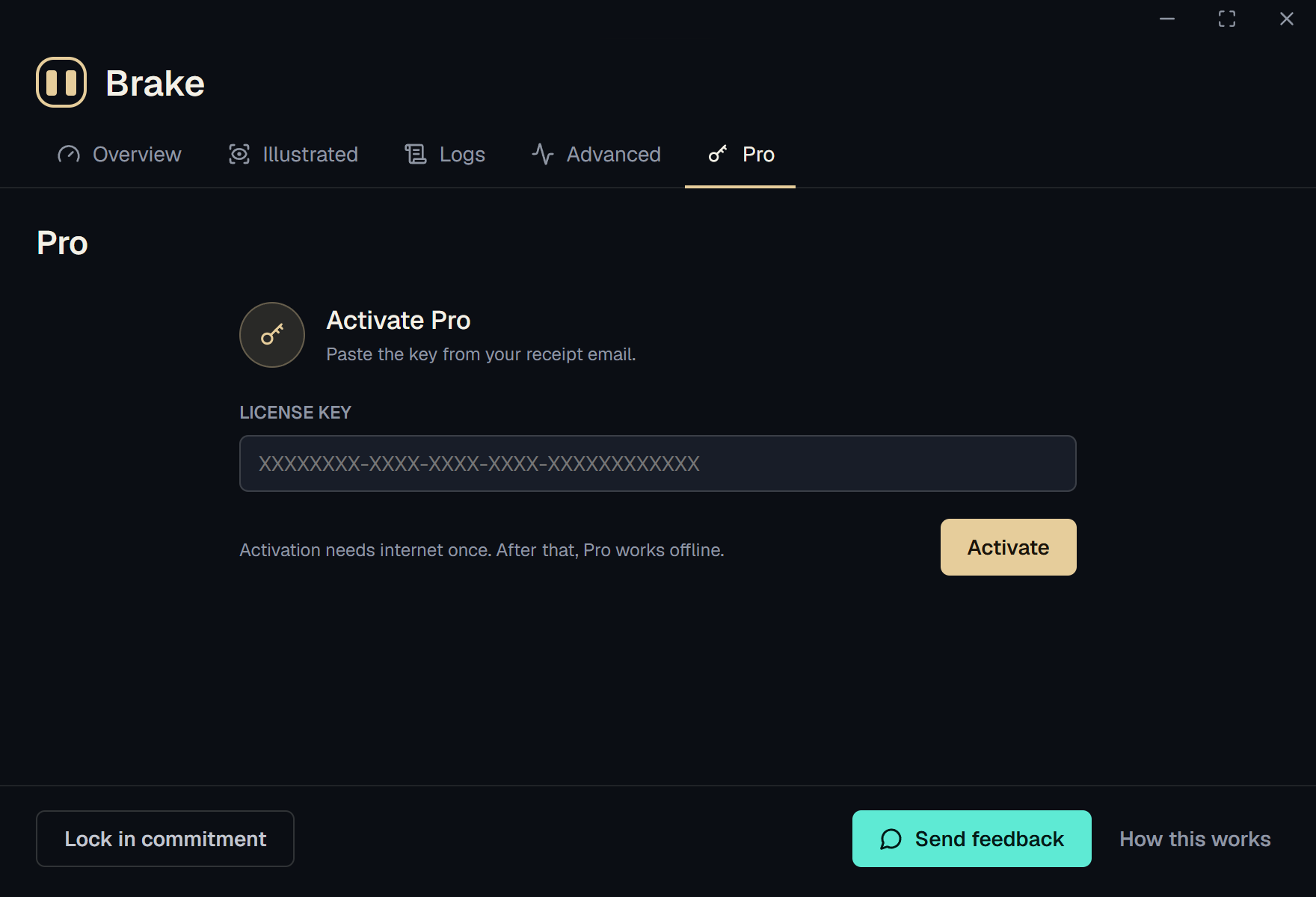
Every download includes a 7-day Pro trial. If you bought Pro, activate it with the key from your receipt email.
Activation needs internet once. After that, Pro works offline. Can’t find your key? Check your Lemon Squeezy receipt email or “My Orders”, or email hello@usebrake.app.
A quiet pause between impulse and action